
Introduction
This document explains how to enable HID (Human Interface Device) mode in the Nordic ID smart reader Sampo S3. You can install various standalone applications on the Sampo S3. HID-reader is one of those applications.
Instructions
Connect Sampo S3 to the network (Internet required)
Access the Web Interface:
- Open a web browser
- Enter the current IP address of the device in the address bar:
https://[current deviceIP] - If you don’t know the IP, check the IP address from your router or use arp -a in Command Prompt to find the device's IP.
- Log in to the device:
Username: admin
Password: Check the label on the back of the device
Go to Software > App Center > Install Mosquitto
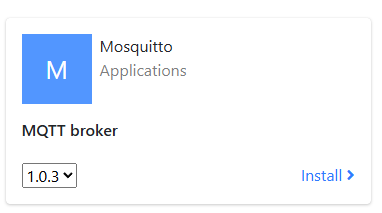
Download the HID-Reader app from the following link into your PC
Download the HID-Reader app from the following link into your PC
hidreader-signed_smartg2_v1.0.6.zip
Go to Software > Applications
'Install new application', browse to the application file, and press Install
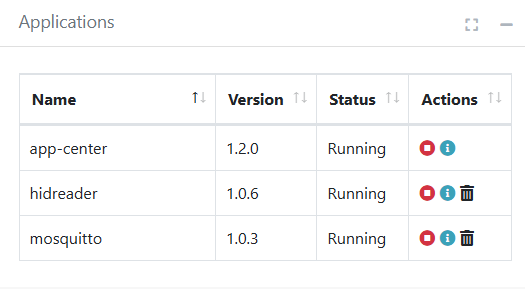
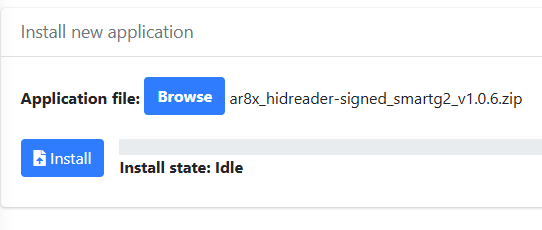 After installation, make sure these apps are running.
'Install new application', browse to the application file, and press Install
After installation, make sure these apps are running.Go to Hardware > USB
Set the USB-C port to HID mode
Configuring HIDReader
Go to Application > Hidreader
Configure the suitable TX level (1) and set the output type to the HID.
Note that you can also configure, for example, output format etc.
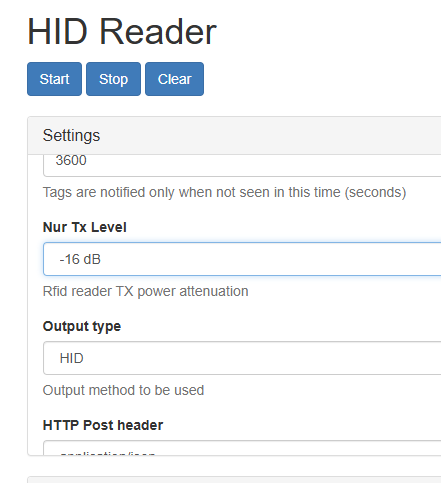
Note that you can also configure, for example, output format etc.
After all settings are complete, scroll down the page and press the 'Save' button to save the settings.
Now the application is configured for HID usage, and it starts sending data to the USB
The event log shows what is happening.