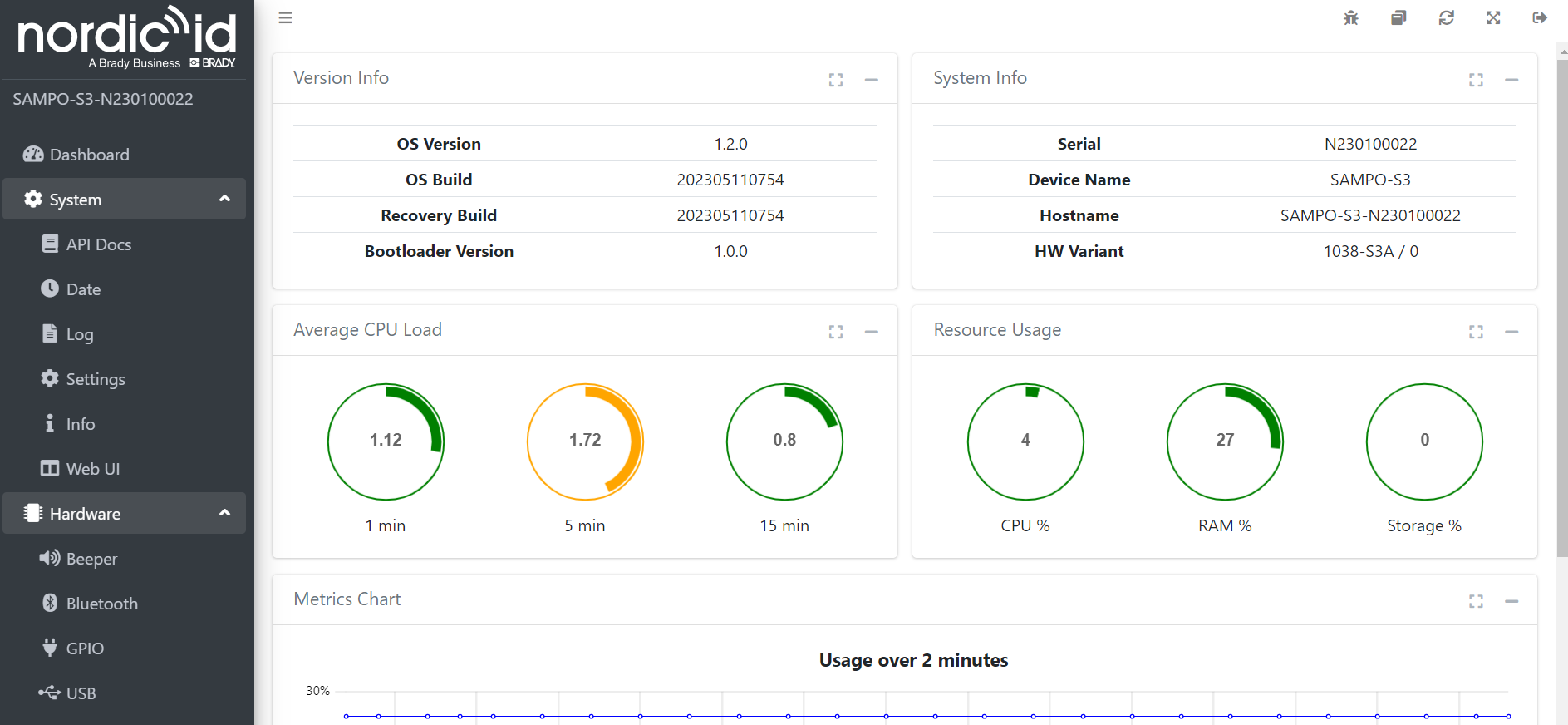
This page describes how to update the OS on your Smart Reader through the App Center.
See also our guide on how to update S2 and AR readers OS
- Download and install the latest RFID Demo (v1.4.9) to your computer and launch it:
https://www.nordicid.com/rfid_demo_setup_v149/ - Connect the Smart Reader to your local network with an Ethernet cable.
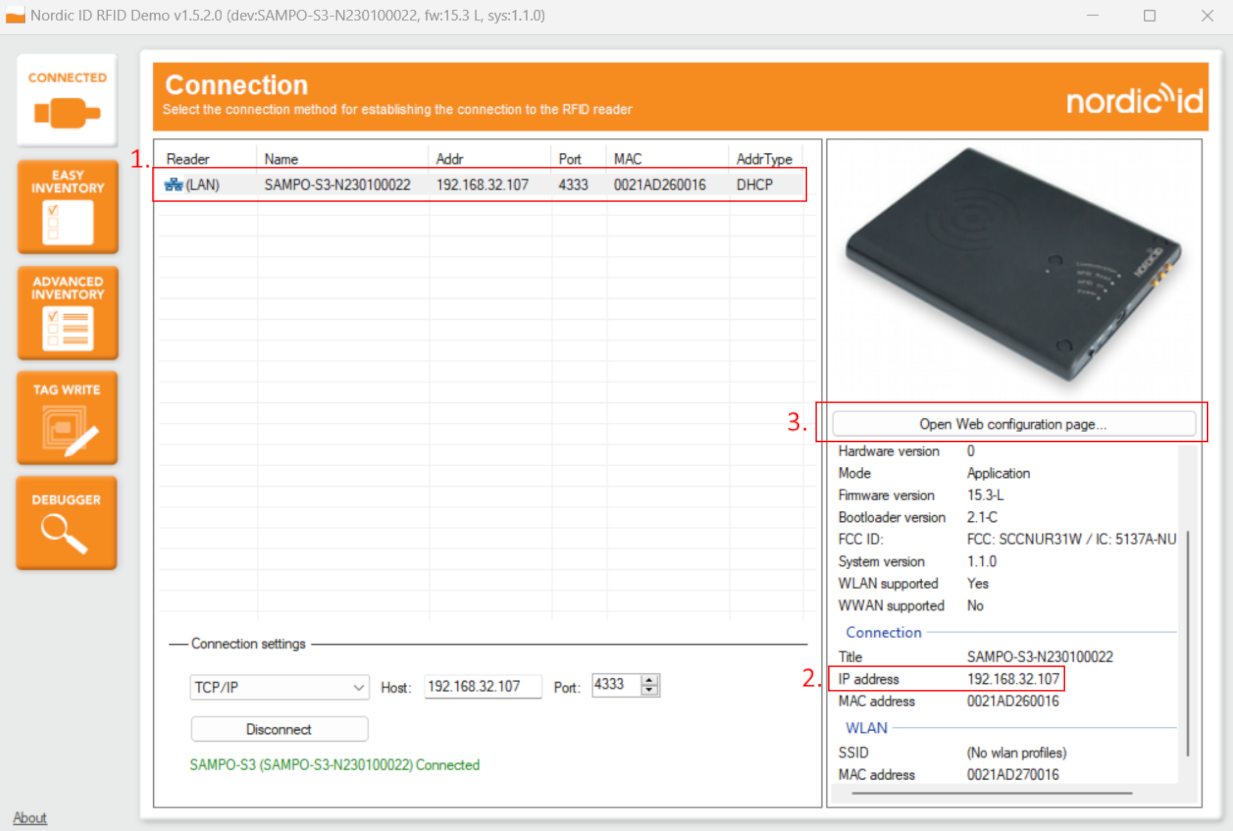
- When the device appears in the RFID Demo, double-click it in the list (1). To launch the configuration interface in your web browser, click the “Open Web configuration page” button (3) that appears in the sidebar. If you don’t see the device on the list, connect the device to your computer with a USB cable, retrieve its IP address manually (2), and go to the IP address in you web browser.
- Log in to the page at your device's IP address with the credentials from the sticker on the underside of the device.
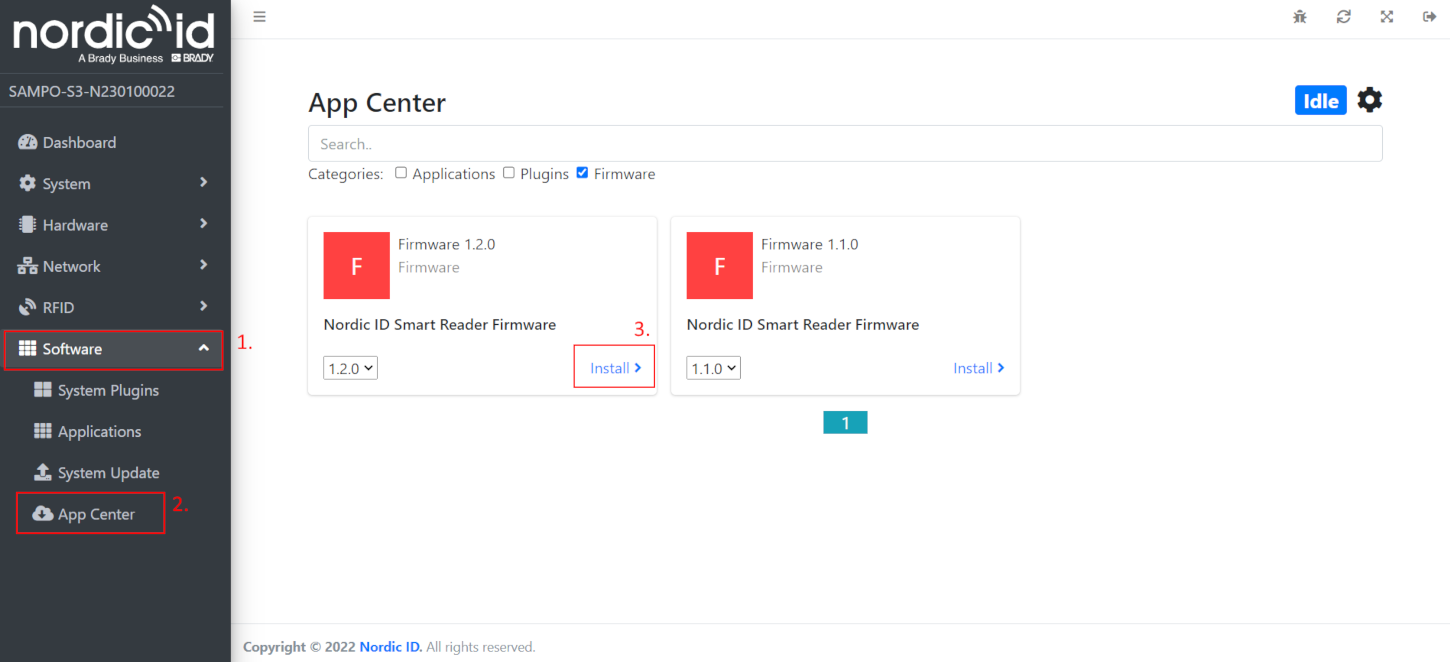
- From the side menu, select "Software" (1) and "App Center" (2). To show only the available firmware in the App Center list, clear the "Applications" and "Plugins" checkboxes. Select the firmware you want to install (3) and confirm the action. The installation can take several minutes.
- To verify the installation, log in to the Web configuration page again and check that the firmware version number has changed.